Tasks & projects

Every task assigned. Every project tracked.

Organise every project, assign tasks and track your team's progress.

From schedule to field, nothing lost.

1

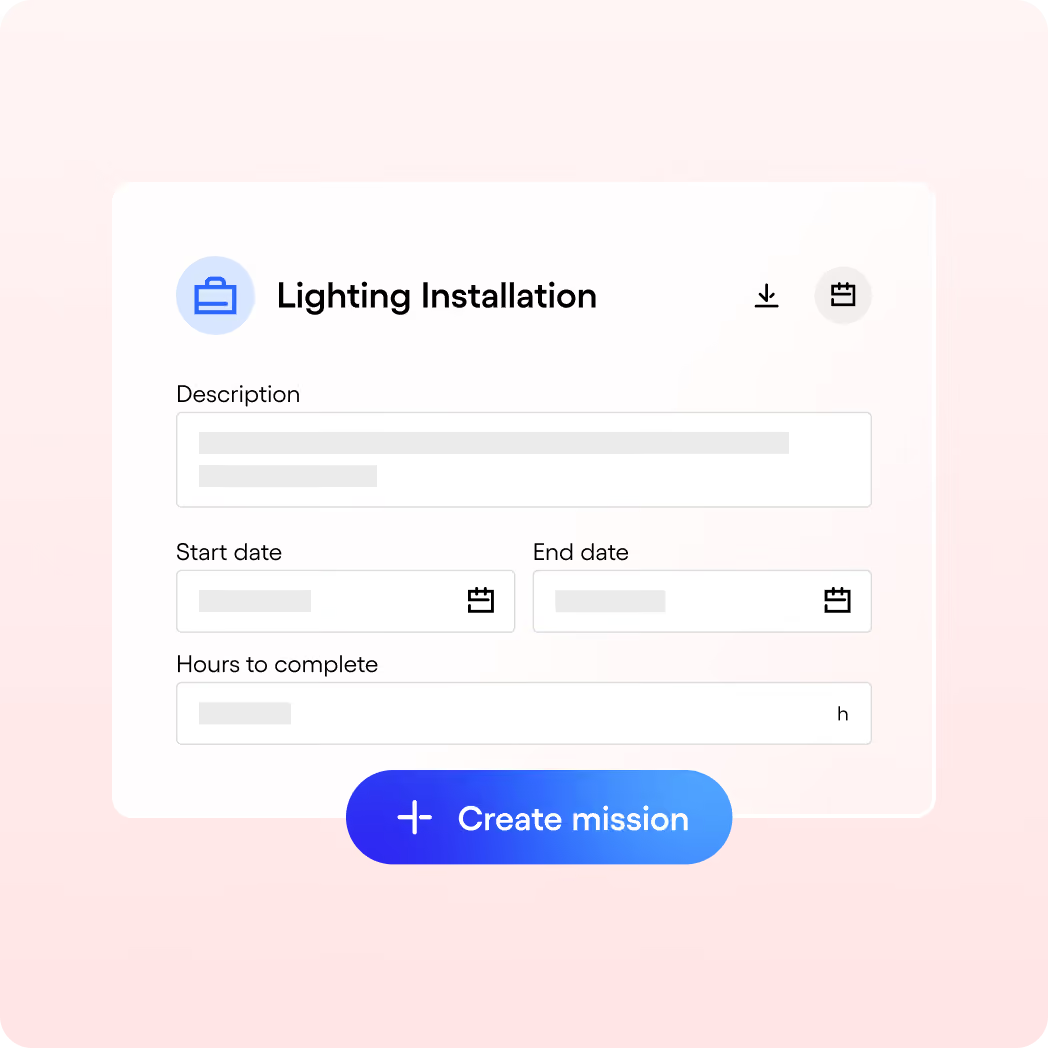
Create the project and its scope

Name, description, dates, planned hours: the project frames all the work to be done.
2

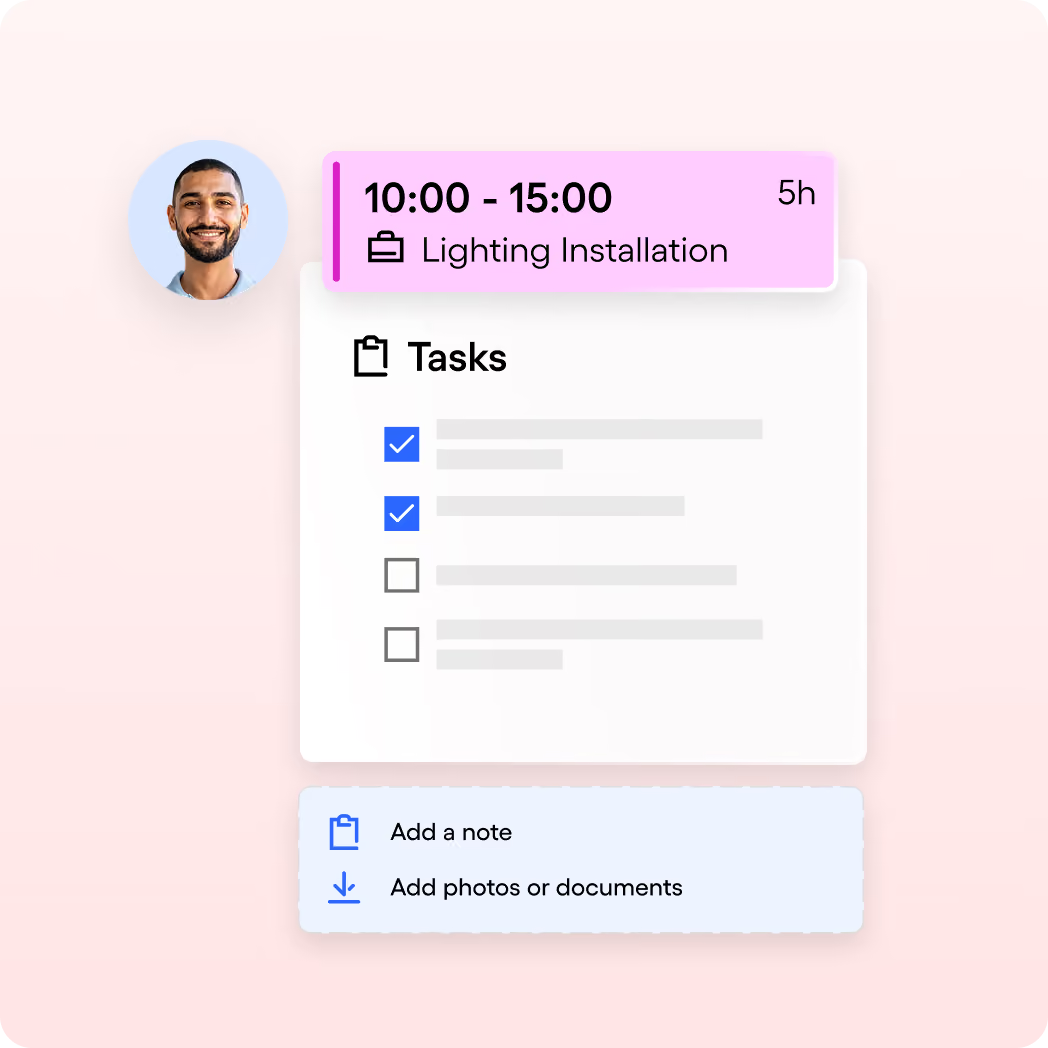
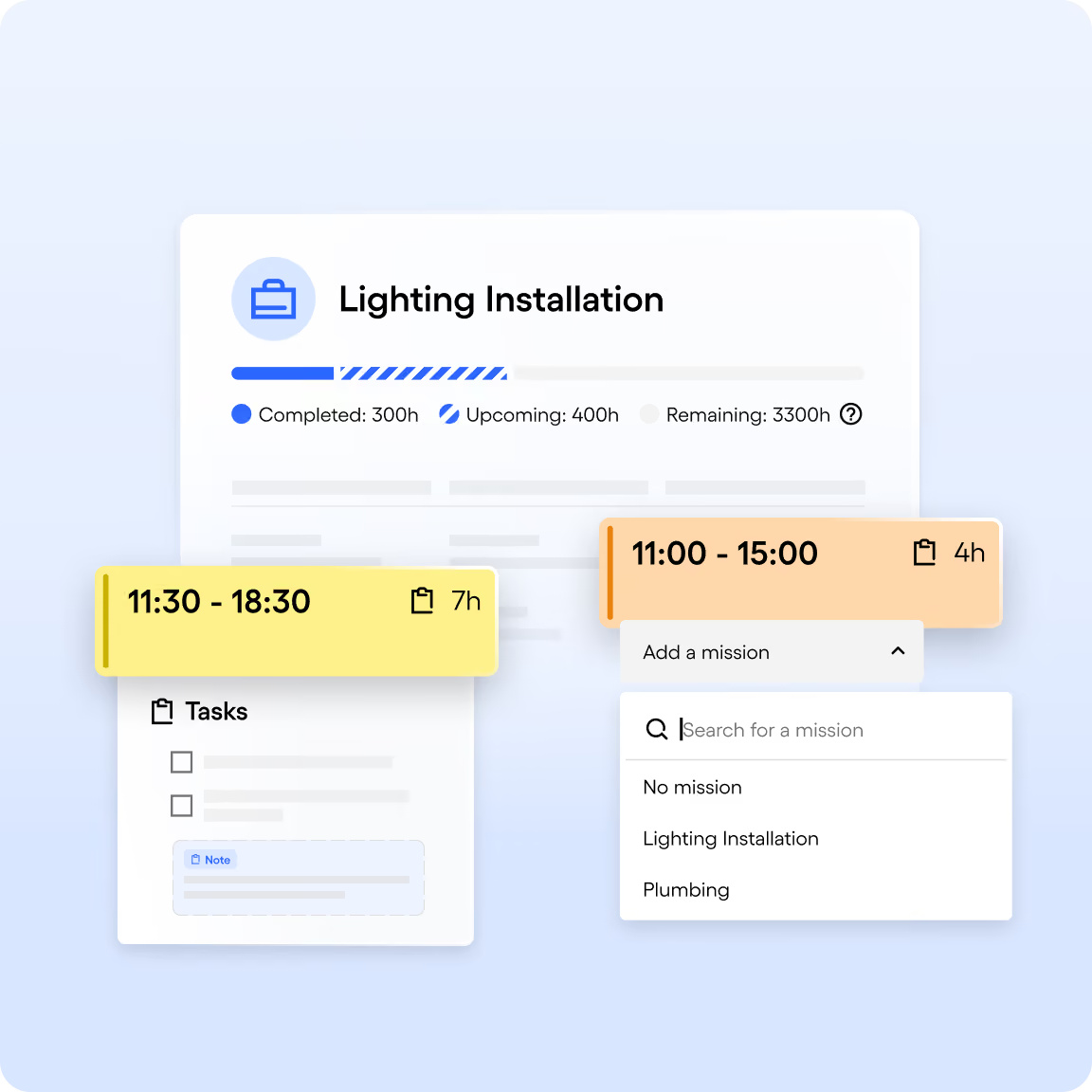
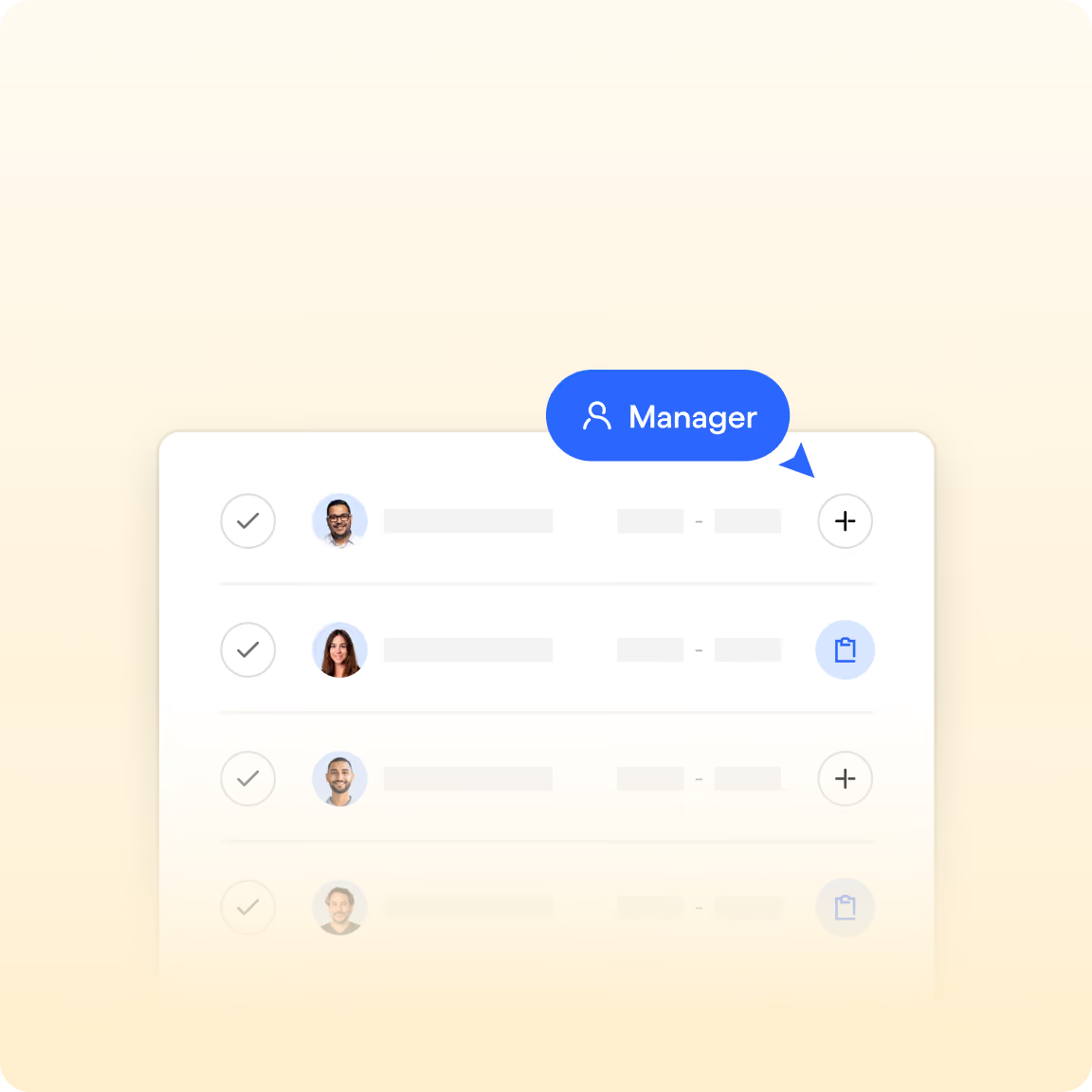
Plan the shifts, assign the tasks

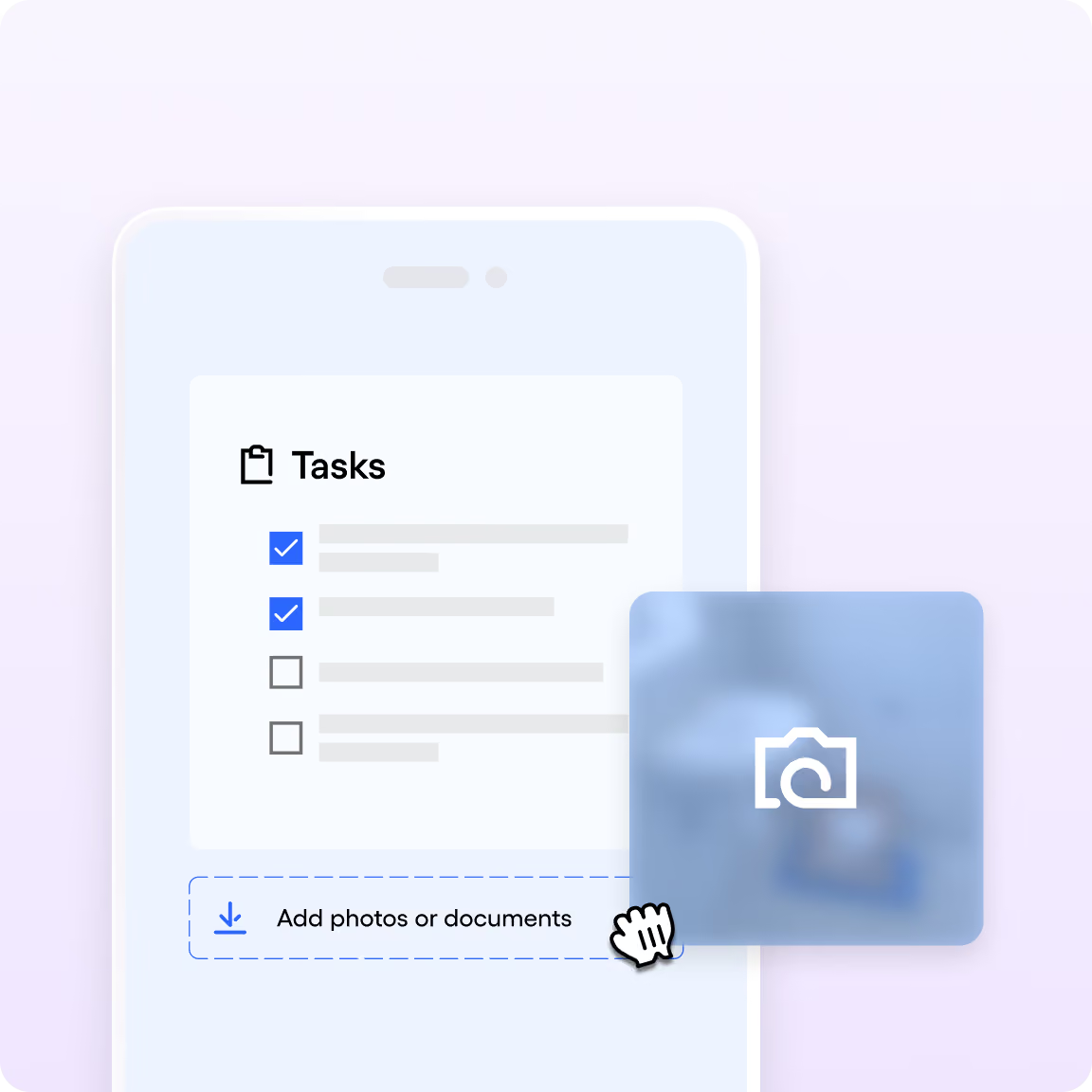
Link each shift to the project, then add tasks with instructions, documents and photos.
3

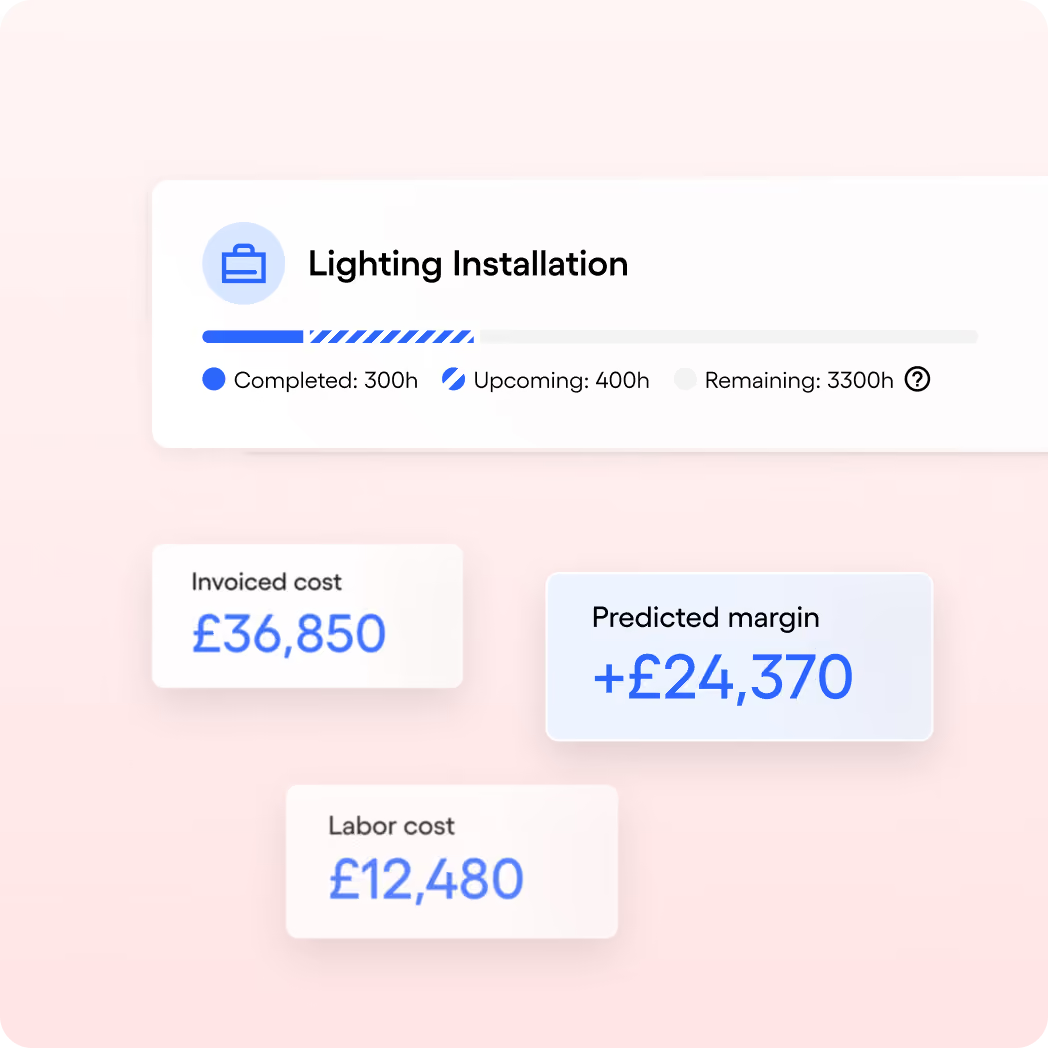
Track progress in real time

Tasks ticked off, hours used, margin to date: you know where every project stands.

No more verbal handovers.

Bring together every project's useful information in Skello: your teams know what to do and easily find the documents and photos they need.
Assign precise tasks to each employee on the ground, avoiding mix-ups and things slipping through.
Everything is linked to the shift: no more handover logbook, no more lost WhatsApp messages.

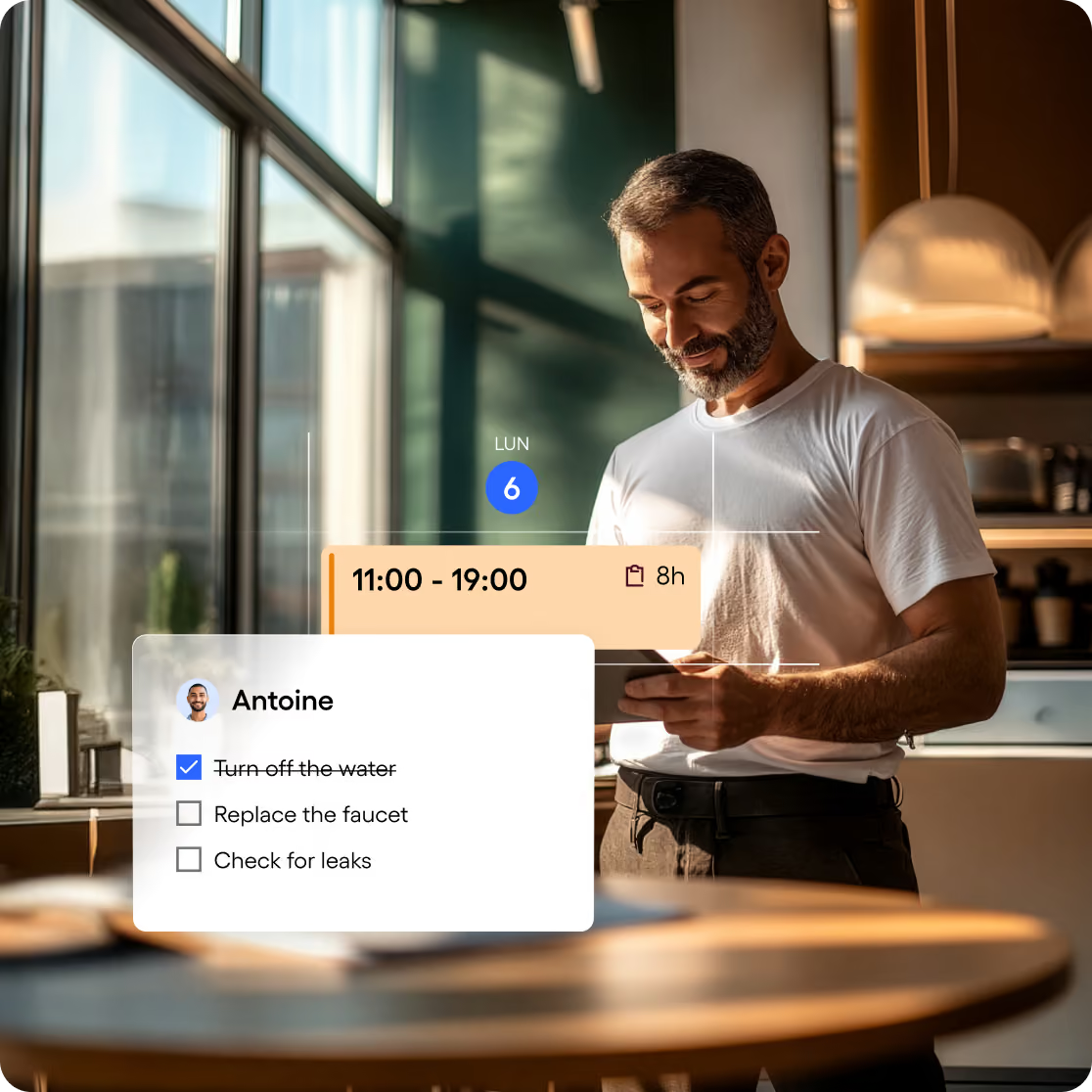
Your teams keep you posted. No chasing required.

Your employees tick off completed tasks: tracking happens from the ground, in real time.
Follow your projects' progress through the photos and documents your teams send straight from the field.
Fewer interruptions and less back-and-forth to know where everyone stands.

Step in before it becomes a problem.

Centralise your team conversations and keep an eye on assigned tasks' progress, right from the schedule.
Spot a delay or blocker straight away and reshuffle the day accordingly.
You keep your client commitments without chasing down information.

Questions les plus fréquentes

What is a project in Skello?
Open FAQ Close FAQ
A project brings together all the activities your employees carry out over a given period to reach a specific goal. It's your starting point to centralise information, plan resources and track progress.
What's the difference between a project, a shift and a task?
Open FAQ Close FAQ
The project defines why the work happens (the client, the goal). The shift defines when an employee works. The task defines what they need to do during that slot. All three are linked in Skello, so you avoid double entry and things being forgotten.
How do I assign tasks to my teams with Skello?
Open FAQ Close FAQ
You create the task straight from the schedule and link it to a shift or an employee. Add the instructions, documents or photos needed, and the task appears automatically in the relevant employee's mobile app.
Can my employees see their projects and tasks from their phone?
Open FAQ Close FAQ
Yes. The project name shows on the shift in the app, along with the description the manager shared, and each employee finds their tasks for the day with the instructions and attachments. They tick off completed tasks as the day goes on, with no need for a computer.
How do I know a task has been done?
Open FAQ Close FAQ
The tasks your teams tick off update in the schedule in real time. You see at a glance what's finished, what's in progress and what's running late, without having to call anyone.